See your business clearly with a business reports app
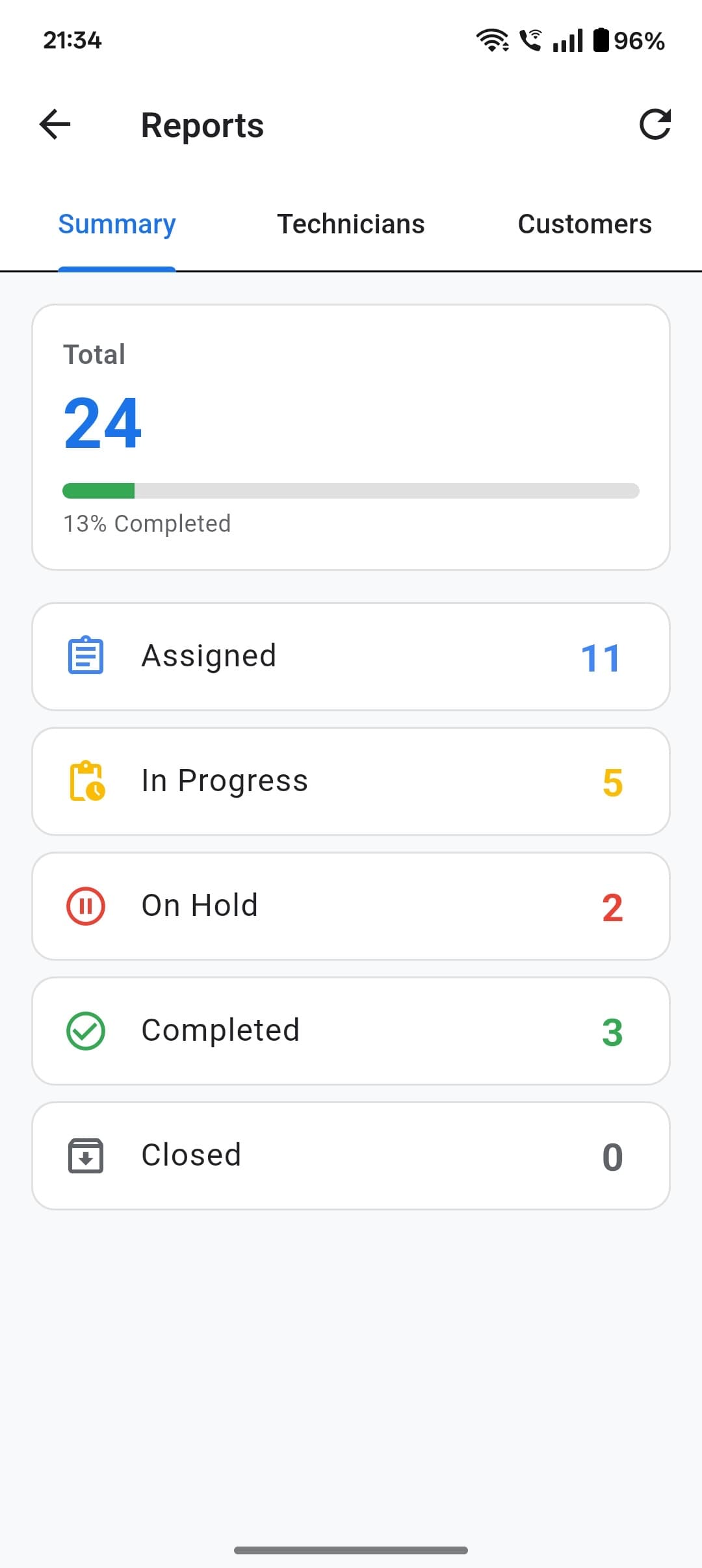
Which customer owes the most, and which technician closed the most jobs this month? A business reports app should answer in seconds. TeamShastra's reports come from work already done in it: jobs, bills, payments, expenses and attendance. Tap any number to see the rows behind it.
The problem
Ask a small service owner how the month went and you will hear, "Busy, but money is tight." They know they worked hard. They do not know which jobs paid well, which customers still owe money, or which technician finished the most work.
Answers are spread across a billing tool, a bank app, a diary and the owner's memory. Pulling them together takes hours, so it rarely happens. Decisions about hiring, raising rates or chasing dues are made on feeling.
The team does not know how they are doing either, so good work goes unnoticed.
When the CA asks for figures, or a bank asks for business numbers before a loan, the owner has to collect them from many places in a hurry.
Which reports the business reports app includes
In TeamShastra the Reports section opens with an overview of collections, expenses and jobs for the period you pick, including a chart of jobs by category. Below it are groups for Sales & GST, Bank & Cash, Employees & Payroll, Expenses, and Jobs & AMC. Every figure opens a list of the records that make it up.
A revenue dashboard shows money coming in over time. Money in and money out reports show cash flow. Customer activity and priority breakdowns show where work comes from.
The team performance scorecard looks at on-time check-ins, missed checkouts and jobs completed for each person, and gives a reliability score. Technicians can open My performance to see their own numbers, which helps them improve without a lecture. The Home screen also shows a short business snapshot with collections, expenses and dues for owners and managers.
Because reports are built from the same records your team creates daily, there is no separate data entry for them.
How it works in the app
- Open Reports from the menu.
- Pick a date range, such as this month or a custom range.
- Read the overview for collections, expenses and jobs.
- Open a category such as Bank & Cash or Jobs & AMC.
- Tap any figure to see the records behind it.
- Open the team scorecard to compare check-ins and completed jobs.
Who it is for
Reports are for owners and managers; a technician only gets My performance. They help growing firms make decisions on facts, such as IT AMC providers, fire safety contractors, lift maintenance companies and cleaning service firms.
Benefits
- Money in, money out and dues are visible in one place
- Every number can be checked down to the record
- Technician performance is measured the same way for everyone
- Staff can see their own scorecard and improve
- Date ranges make it easy to compare months
What it does not do
- It is not a full accounting system with a balance sheet; your CA still prepares final accounts.
- No sales forecasts either.
Questions about business reports
Straight answers about business reports in TeamShastra.
What does the technician scorecard measure?
It looks at each person's on-time check-ins, missed checkouts and jobs completed in the period, and combines them into a reliability score. It gives owners a fair, data-based view of who is consistent, instead of judging by who talks the most.
Can technicians see each other's performance?
No. A technician can open My performance from Home or Profile to see only their own figures. The full team scorecard is for owners and managers. This keeps comparisons private while still letting staff track themselves. Managers can use it in monthly reviews.
Can I check which customers still owe me money?
Yes. The Sales & GST reports and the business snapshot show customer dues, split by how old the bills are. Tap the figure to see each customer and bill. Supplier dues are shown the same way for money you owe. Dues are split by age.
Can I choose my own date range?
Yes. Reports have ready presets such as this month and last month, and you can pick a custom start and end date. Comparing the same period across months shows whether things are getting better. The same range applies across the report categories you open next.
Can I export a report?
The overview can be exported, and GST reports have their own Excel and PDF exports for your CA. For other figures, open the drill-down list to see the records, which is often what an accountant or partner asks for. Your CA will mostly need those.
Keep exploring
Plans and prices are on the pricing page.