Work order management app that keeps every job in one place
Your customer calls at 11 to ask if yesterday's job is finished, and nobody is sure. A work order management app fixes that. In TeamShastra every job has one record with the customer, the people assigned, its status, photos and comments, so you stop digging through calls and chats.
The problem
Most small service firms take jobs on the phone. A customer calls the owner, the owner forwards a voice note to a technician, and the job lives in that chat. Two days later nobody remembers the address, the complaint or the promised time.
The customer calls back, the office asks the technician, the technician asks the helper, and the answer still comes back as "I think it is done". Jobs fall between people. Some are visited twice. Some are never visited at all. The owner only finds out when an angry customer posts a review or refuses to pay.
A register book does not help much either. It stays in the office, it cannot hold photos, and it never shows who is working on what right now.
What the work order management app records for each job
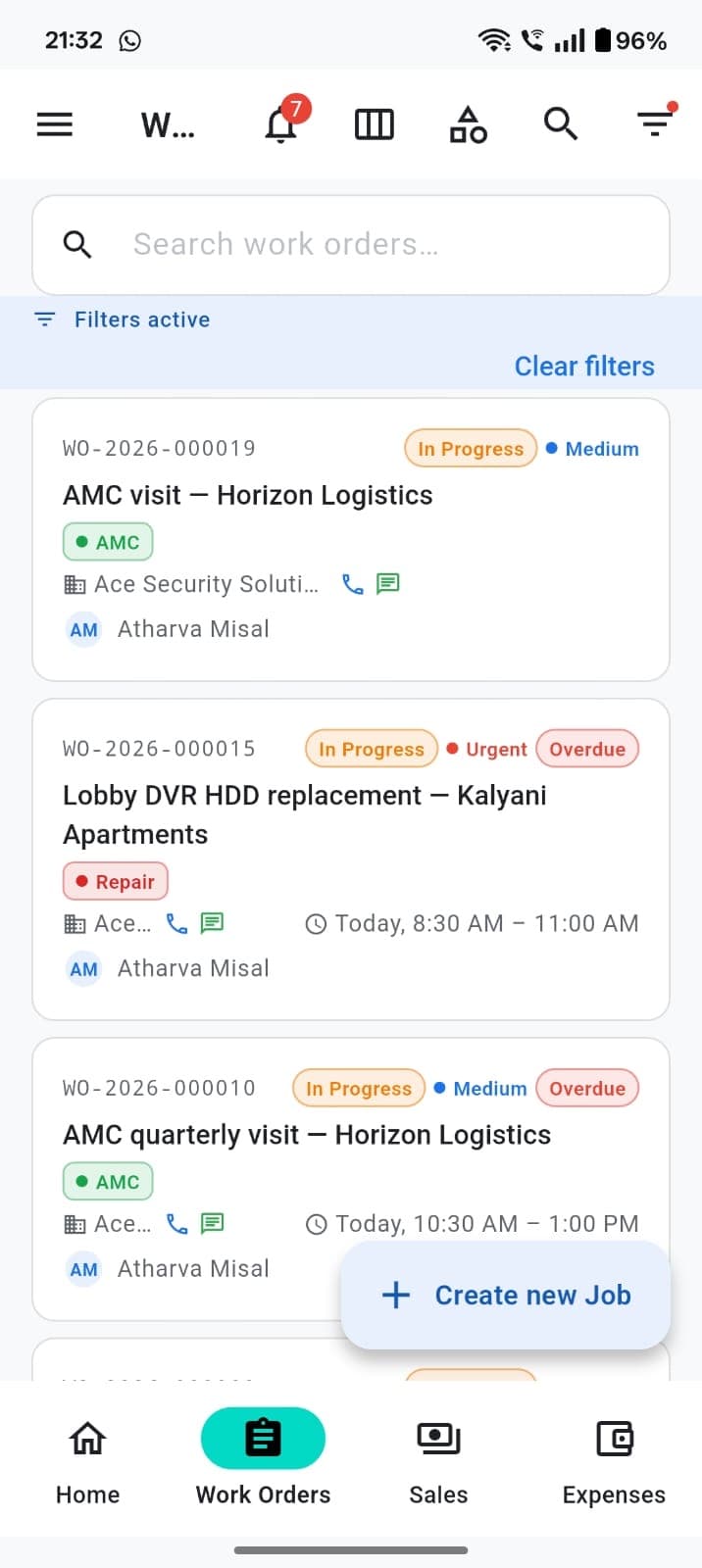
In TeamShastra every job is a work order. You add the customer, a title, the problem, a category and a priority. Then you assign one person or a small group. The job moves through clear stages: not assigned, assigned, in progress, on hold, completed and closed. A closed job can be reopened if the customer calls again.
Technicians open the job on their phone, add before and after photos, and write comments as they go. Each change lands on the activity timeline, so you can see who did what and when. Categories such as installation, repair or AMC visit let you filter the list later.
When the technician finishes, the app asks how the customer paid: cash, UPI or still unpaid. That money is tied to the job instead of a note in someone's pocket. The owner and managers can search all work orders by status, customer or person, and share a report with the customer straight from the job.
For a wider view, see the digital work orders overview.
How it works in the app
- Open Work orders and tap the add button to create a job for a customer.
- Pick a category and priority, write what the customer needs, and assign one or more team members.
- The technician taps Start when they reach the site, then adds photos and comments during the visit.
- Put the job on hold if a part is missing, with a comment that explains why.
- Mark it completed and record whether the customer paid by cash, UPI or nothing yet.
- Review the timeline and close the job, or reopen it later if the problem comes back.
Who it is for
Every open job is visible without calling anyone. Managers use it to assign and reassign work through the day. Technicians use it as their daily job list with the address, notes and photos in one screen. It suits CCTV installers, AC service companies, appliance repair shops, pest control firms and lift maintenance teams.
Benefits
- Every job has one record that everyone in the company reads from
- Before and after photos settle arguments about what was done
- On-hold reasons stop jobs from quietly going cold
- Collection at completion ties cash and UPI to the job that earned it
- Categories and filters make old jobs easy to find months later
What it does not do
- Choosing who goes where is still your call. The app won't pick the technician for you.
- No route planning either: working out the shortest drive between sites stays with your team.
Questions about jobs & work orders
Straight answers about jobs & work orders in TeamShastra.
Can I assign one work order to two or three technicians?
Yes. A job can have more than one assignee, which suits installs that need a technician and a helper. Each person sees the job in their own list, and anyone assigned can add photos and comments. The timeline shows which person made each change, so you still know who did the work.
What happens when a job is put on hold?
On hold is its own status between in progress and completed. Use it when a part has to be ordered or the customer asks you to come back later. Add a comment with the reason. The job stays visible in the open list, so it does not get forgotten the way a paused WhatsApp chat does.
Can a closed job be opened again?
Yes. If the same fault returns, a manager can reopen the closed job instead of creating a new one. The earlier photos, comments and timeline stay on it. This keeps the full story of that complaint together and helps you see repeat problems at one customer site.
Do technicians need a laptop to update jobs?
No. Technicians use the Android app on their own phone. They can start a job, take photos with the camera and type or dictate comments. Owners and office staff can also use the web app at app.teamshastra.com on a computer if they prefer a bigger screen.
How do I record payment when the job finishes?
When a job is marked completed, the technician can note whether the customer paid in cash, paid by UPI, or has not paid yet. This collection is linked to the job. The office can then follow up on unpaid jobs or raise a GST invoice from the same customer record.
Can I make my own job categories?
Yes. Owners and managers set up work order categories that match the business, such as new installation, breakdown, shifting or annual service visit. Categories help with filters and with the category breakdown report, which shows where most of your work comes from.
Keep exploring
Plans and prices are on the pricing page.